Integration Guide: Connecting OpenClaw to RouterHub
This guide explains how to connect OpenClaw to the RouterHub API gateway. Since RouterHub is fully OpenAI-compatible, you can integrate it in seconds using either CLI arguments or environment variables.
Prerequisites
Before you begin, ensure you have the following:
- A RouterHub Account: You need an active account with us.
- Your API Key: Locate your unique API key in your RouterHub dashboard. This key will authorize your OpenClaw instance to make requests through our gateway.
- OpenClaw Installed: Ensure you have OpenClaw set up and running on your system.
Configuration Steps
OpenClaw can be configured to use a custom LLM provider that follows the OpenAI API format. Since RouterHub is compatible with the OpenAI API structure, configuration is straightforward.
RouterHub is fully OpenAI-compatible, so you can use it as a drop-in replacement for any OpenAI-compatible provider in OpenClaw.
🚀 Interactive CLI Configuration
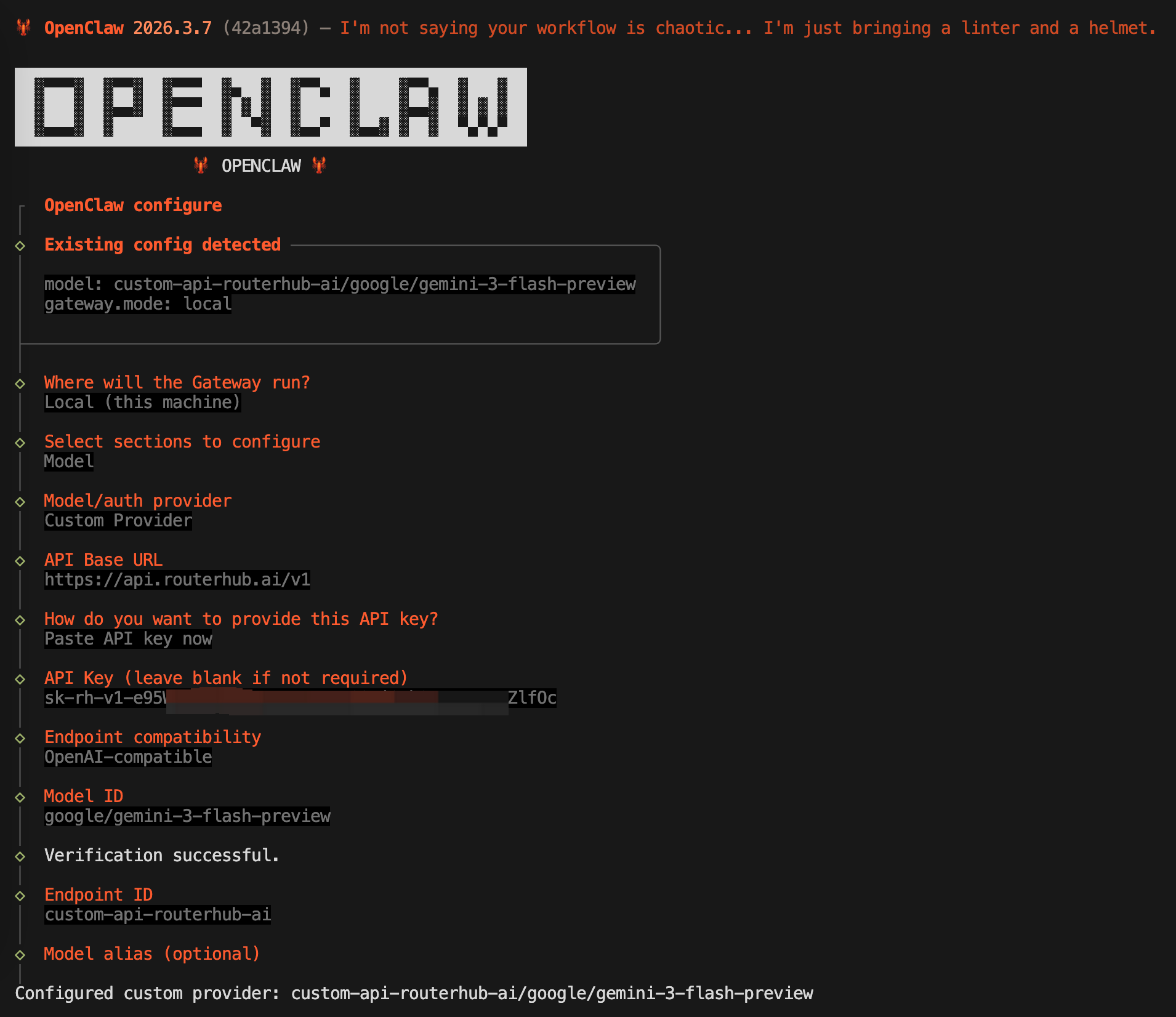
OpenClaw provides a built-in configuration wizard. This is the most foolproof way to ensure your API and Model IDs are set correctly.
Steps to Configure
-
Start the Wizard: Run the following command in your terminal:
openclaw configure - Follow the Prompts: Fill in the details as shown in the table below to route requests through RouterHub:
| Prompt | Value to Enter / Select |
|---|---|
| Where will the Gateway run? | Local (this machine) |
| Select sections to configure | Model |
| Model/auth provider | Select Custom Provider |
| API Base URL | https://api.routerhub.ai/v1 |
| How to provide API key? | Paste API key now |
| API Key | Paste your RouterHub API Key here |
| Endpoint compatibility | OpenAI-compatible |
| Model ID | e.g., google/gemini-2.5-flash-preview (or any model available on RouterHub) |
Verifying the Configuration
Once you have configured the environment variables or the configuration file, start OpenClaw. If the configuration is correct, OpenClaw will be able to successfully communicate with our gateway.
You can verify this by running a simple task in OpenClaw. If OpenClaw responds without errors, your integration is complete!
https://api.routerhub.ai/v1
Troubleshooting
Error: "Invalid API Key"
Double-check that you have copied your RouterHub API key correctly and that it is active. You can find and manage your API keys in the RouterHub dashboard.
Error: "Connection Refused" or "Timeout"
Ensure that you have entered the correct api_base URL (https://api.routerhub.ai/v1) and that your network allows connections to that endpoint.
Model Not Found
Verify that the model name you have specified is supported by the providers you have enabled in your RouterHub account. You can check the list of available models via the Models endpoint.
If you continue to experience issues, please contact our support team at support@routerhub.ai.