Integration Guide: Connecting Claude Code to RouterHub
This guide explains how to configure Claude Code to use the RouterHub API gateway as its backend. RouterHub is fully compatible with the Anthropic Messages API, making it a drop-in replacement for the official API endpoint.
Below are three configuration methods, from the most stable to the most convenient. Choose the one that best fits your workflow.
Prerequisites
- A RouterHub Account: You need an active account with a valid API key.
- Your API Key: Locate your unique API key in the RouterHub dashboard.
- Claude Code Installed: Ensure you have Claude Code (
claudeCLI) installed and accessible in your terminal.
Method 1: JSON Configuration File
This is the most stable method, ideal for long-term use. It directly modifies Claude Code's persistent settings, effectively preventing configuration loss after restarts.
File Path
vim ~/.claude/settings.jsonConfiguration Template
Copy the following template and replace the placeholder values with your actual RouterHub credentials:
{
  "env": {
    "ANTHROPIC_AUTH_TOKEN": "sk-xxxx your RouterHub API Key",
    "ANTHROPIC_API_KEY": "",
    "ANTHROPIC_BASE_URL": "https://api.routerhub.ai",
    "ANTHROPIC_MODEL": "anthropic/claude-opus-4.6",
    "ANTHROPIC_DEFAULT_HAIKU_MODEL": "anthropic/claude-opus-4.6",
    "ANTHROPIC_SMALL_FAST_MODEL": "anthropic/claude-opus-4.6"
  }
}
Note: Both ANTHROPIC_AUTH_TOKEN and ANTHROPIC_API_KEY are supported. We recommend ANTHROPIC_AUTH_TOKEN to avoid conflicts with cached Anthropic sessions.
Important (Opus 4.7 / 4.8 Migration): claude-opus-4-7 and claude-opus-4-8 only support thinking.type: "adaptive" for extended thinking. Unlike Opus 4.6, thinking.type: "enabled" with budget_tokens is not supported and will return HTTP 400. If you are migrating from Opus 4.6, update your requests to use thinking.type: "adaptive".
To stay compatible with this update in Claude Code, set your model to claude-opus-4-7 or claude-opus-4-8 when using RouterHub API (without the anthropic/ prefix).
Key Details
| Field | Description |
|---|---|
| apiKeyHelper | The most reliable way to prevent auto-logout. When Claude Code cannot find the API key from environment variables, it will execute this command to retrieve it. Recommended |
| ANTHROPIC_BASE_URL | The RouterHub API endpoint URL. Do not add a /v1 suffix — RouterHub handles routing automatically. |
| ANTHROPIC_MODEL | Use the full model identifier, e.g. anthropic/claude-opus-4.6. If your provider uses a different naming convention, update this field accordingly. |
| primaryModel | Sets the default model for Claude Code sessions. Should match ANTHROPIC_MODEL. |
Tip: The apiKeyHelper field is the most effective safeguard against "auto-logout" issues. It acts as a fallback mechanism — whenever Claude Code fails to locate your API key via standard environment variables, it runs this command to retrieve it.
Method 2: Environment Variables
Environment variables override the JSON configuration file. This is the best choice for CI/CD pipelines or quick testing without modifying files.
Run in Terminal (macOS / Linux)
# Set your RouterHub API key, base URL and model
export ANTHROPIC_AUTH_TOKEN="your_RouterHub_API_KEY"
export ANTHROPIC_API_KEY=""
export ANTHROPIC_BASE_URL="https://api.routerhub.ai"
export ANTHROPIC_MODEL="anthropic/claude-opus-4.6"
export ANTHROPIC_DEFAULT_HAIKU_MODEL="anthropic/claude-opus-4.6"
export ANTHROPIC_SMALL_FAST_MODEL="anthropic/claude-opus-4.6"

# Launch Claude Code
claude
Persist Across Sessions
To make these variables permanent, add the export statements to the end of your shell configuration file:
# Add to ~/.zshrc
echo 'export ANTHROPIC_AUTH_TOKEN="your_RouterHub_API_KEY"' >> ~/.zshrc
echo 'export ANTHROPIC_API_KEY=""' >> ~/.zshrc
echo 'export ANTHROPIC_BASE_URL="https://api.routerhub.ai"' >> ~/.zshrc
echo 'export ANTHROPIC_MODEL="anthropic/claude-opus-4.6"' >> ~/.zshrc
echo 'export ANTHROPIC_DEFAULT_HAIKU_MODEL="anthropic/claude-opus-4.6"' >> ~/.zshrc
echo 'export ANTHROPIC_SMALL_FAST_MODEL="anthropic/claude-opus-4.6"' >> ~/.zshrc

# Reload the configuration
source ~/.zshrc
# Add to ~/.bashrc
echo 'export ANTHROPIC_AUTH_TOKEN="your_RouterHub_API_KEY"' >> ~/.bashrc
echo 'export ANTHROPIC_API_KEY=""' >> ~/.bashrc
echo 'export ANTHROPIC_BASE_URL="https://api.routerhub.ai"' >> ~/.bashrc
echo 'export ANTHROPIC_MODEL="anthropic/claude-opus-4.6"' >> ~/.bashrc
echo 'export ANTHROPIC_DEFAULT_HAIKU_MODEL="anthropic/claude-opus-4.6"' >> ~/.bashrc
echo 'export ANTHROPIC_SMALL_FAST_MODEL="anthropic/claude-opus-4.6"' >> ~/.bashrc
# Reload the configuration
source ~/.bashrcNote: Environment variables take precedence over JSON settings. If both are configured, the values in your environment will be used.
Method 3: Interactive Commands
If you are already inside the claude interface, you can inspect and adjust the configuration using built-in slash commands. This is ideal for quick adjustments without leaving the session.
Available Commands
| Command | Description |
|---|---|
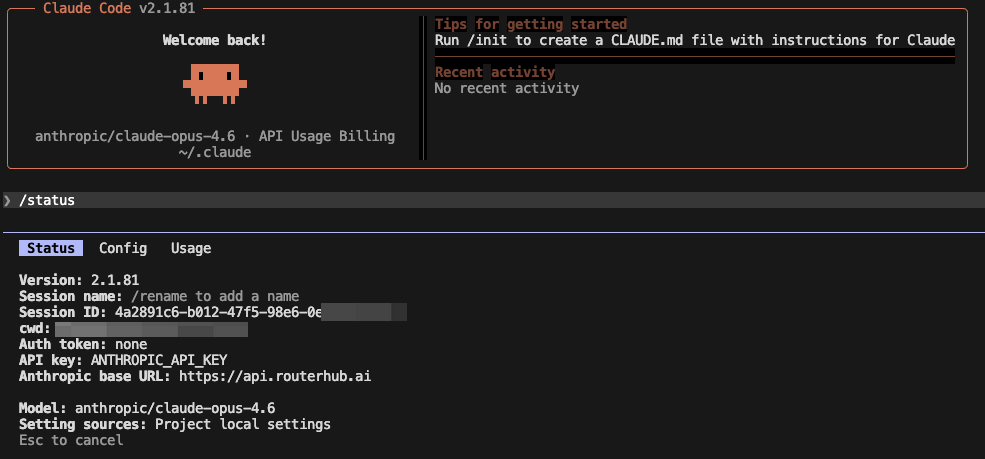
| /status | Check the current connection status. Confirm it displays your RouterHub API key routing rather than an OAuth login account. |
| /config | Open the configuration menu. Look for the "Use custom API key" toggle and ensure it is set to Enabled. |
| /logout | Force-clear the current session state. Use this if the tool is stuck on a stale account, then restart with environment variables applied. |
Quick Verification Flow
- Launch
claudein your terminal. - Type
/status— verify it shows your RouterHub API key, not an OAuth account. - If not, type
/configand enable "Use custom API key". - If still stuck, type
/logout, close the session, re-export your environment variables, and restart.
In the 2026 version of Claude Code, the /config menu includes a dedicated "Use custom API key" switch. Make sure this is enabled when using the RouterHub gateway.
Verifying the Configuration
After completing any of the methods above, verify that Claude Code is properly routed through RouterHub:
- Start a new
claudesession in your terminal. - Type
/statusto confirm the API key and base URL point to RouterHub. - Run a simple prompt (e.g., "Hello, which model are you?") and confirm a successful response.
https://api.routerhub.ai
A successful /status output should look like this:
Troubleshooting
Claude Code Keeps Falling Back to OAuth Login
This usually means the API key is not being picked up. Ensure you have set apiKeyHelper in ~/.claude/settings.json as shown in Method 1. This is the most reliable fix.
Configuration Lost After Restart
If you only set environment variables in the current terminal session, they will be lost when you close it. Either use the JSON file method (Method 1) or persist the variables in your shell configuration file (Method 2).
Error: "Invalid API Key"
Double-check that your RouterHub API key is correct and active. You can verify it in the RouterHub dashboard.
Error: "Connection Refused" or "Timeout"
Ensure that ANTHROPIC_BASE_URL is set to https://api.routerhub.ai and that your network allows outbound connections to this endpoint.
Model Not Found
Verify that the model name in your configuration matches a model available through RouterHub. Check the Models page for the full list of supported models.
If you continue to experience issues, please contact our support team at support@routerhub.ai.